Compare Slots (A–T, 20 Slots)
LUTScope provides 20 comparison slots labeled A through T. Assign your Input LUT + Look LUT combinations to each slot and compare them in the Compare Window.
How to Assign Slots
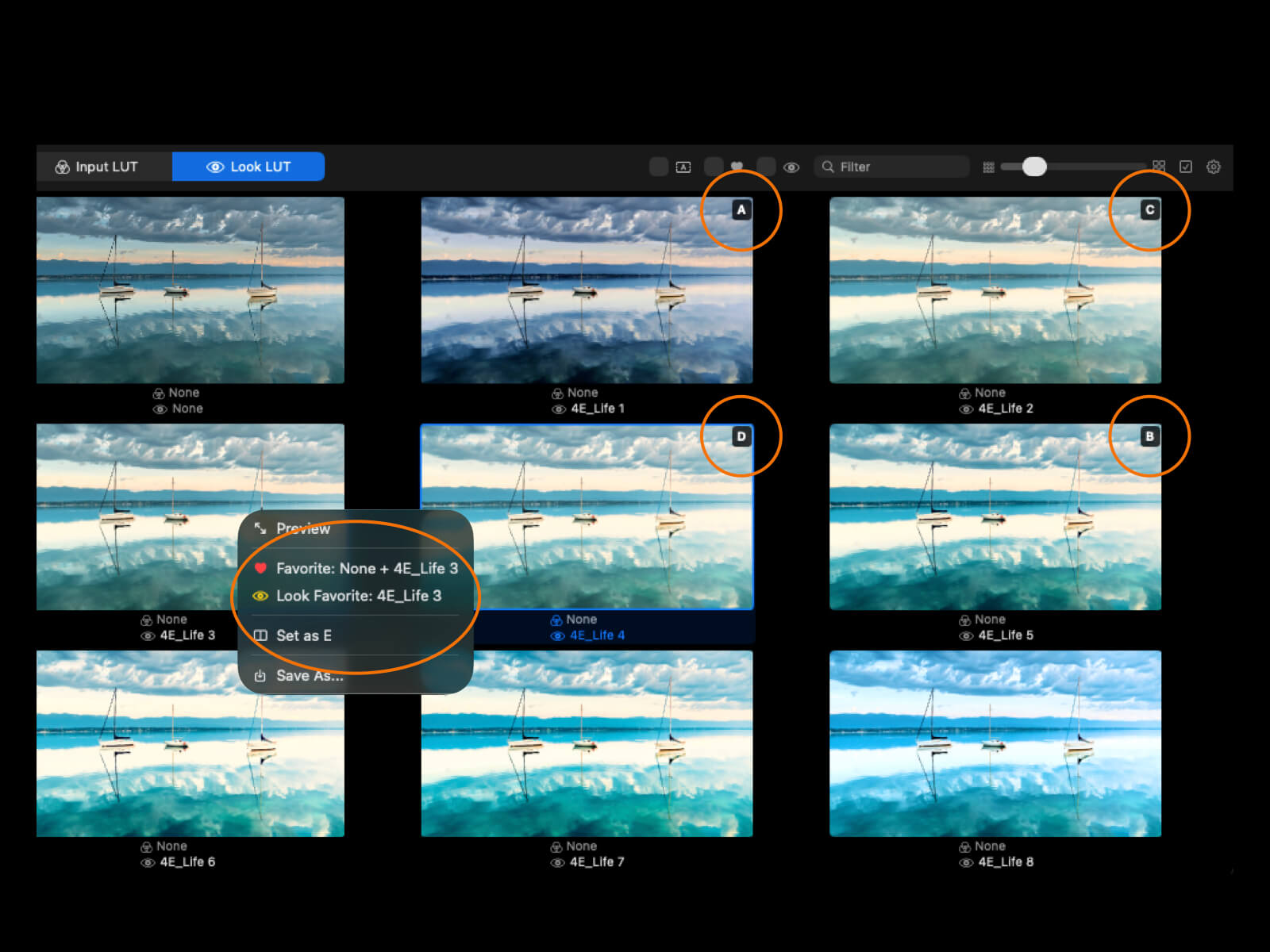
Method 1: Context Menu
- Right-click any cell in the LUT Grid
- Select the desired slot from Set as A / B / C...
- The current Input LUT + that cell's LUT is registered to the slot
Method 2: Double-Click
- Double-click a cell in the grid
- Automatically assigns to slot A (or B), and the Compare Window opens
Slot Management
- Slot Badge: Assigned cells display a slot label (A, B, C...) in the top-right corner of the grid cell
- Overwrite: Assigning a new LUT to an already-occupied slot replaces the previous assignment
- Remove: Context menu > Remove from X to clear a slot
- Set to None: Context menu > Set X to Base to clear only the Look LUT
Slot Labels
A, B, C, D, E, F, G, H, I, J, K, L, M, N, O, P, Q, R, S, T
Toast Notifications
- "Set as A": Assignment successful
- "Already set as A": Already the same LUT
- "A is already set": Slot is already occupied
Compare Window (Grid / Side by Side / Slider)
A window that displays LUT combinations assigned to slots side by side in three comparison modes.
Opening the Window
Double-click a cell in the grid
Toolbar Controls
| Control |
Description |
| Pin Icon |
Keep the window always on top |
| Slot Picker |
Left / Right slot selection dropdowns |
| Show Current |
Orange checkbox to include the currently selected grid cell |
| Mode Picker |
Grid / Side by Side / Slider |
| Layout Toggle |
Switch between horizontal and vertical layout |
Grid Mode — up to 20 slots
- Select Grid
- All assigned slots are displayed as a grid (up to 20 slots, A–T)
- Base cell (always first): Original image without LUT applied (grey badge)
- Current cell (when Show Current is on): Currently selected grid LUT (orange badge)
- Slot cells (A–T): LUT-applied result for each slot (blue badge)
- Input LUT name / Look LUT name shown below each cell
- Scale slider at the bottom to adjust cell size from 100–600px
Side by Side Mode
- Select Side by Side
- 2–3 images displayed next to each other (Left + Right + optionally Current)
- Toggle between horizontal and vertical layout
- Each image shows a slot label and LUT name as a semi-transparent badge overlay
Slider Mode — up to 9 slots
- Select Slider
- Base (left/top) and slot (right/bottom) split by a slider
- Drag the slider knob to adjust the split position
- Toggle between horizontal and vertical slider direction
- "Apply Input to Base side" checkbox: Apply Input LUT to the Base side as well
- Slider mode displays up to 9 slots. This is separate from the 20-slot limit (A–T) available in Grid mode. Assign the LUTs you want to compare in Slider mode to slots A–I.
Context Menu
| Action |
Description |
| Preview |
Open in Preview Window for large-screen view |
| Save as... |
Export as JPEG/PNG image |
| Set as X |
Assign to a slot |
| Remove from X |
Clear the slot |
| Set X to Base |
Clear only the Look LUT |
Video Playback
When a video is loaded, all comparison cells play back in real time with LUT applied, fully synchronized across all slots.
Playback Range
- Centered on the selected thumbnail’s timecode with a ±15-second range (fixed — not user-configurable)
- Automatically clamped to the video start/end — no out-of-bounds seek
- Pressing Play starts from the beginning of the range (center − 15 s)
- Switching thumbnails during playback shifts the center time — playback does not stop
Controls (Toolbar)
| Control |
Description |
| Play / Pause |
Toggle playback. Button located in the toolbar |
| Seekbar |
Scrub anywhere within the ±15-second range |
| Timecode |
Current position in MM:SS format, updated in real time |
| FPS |
Visible during playback only — ≥20 fps: green / <20 fps: orange |
| Loop |
Automatically returns to the start of the range at the end |
Synchronized Playback
- All comparison cells are synchronized at 30 Hz — every slot shows the same moment simultaneously
- Slots with identical LUT settings share a single player (memory optimization)
- In Slider mode, the Before side (Input LUT only) and After side (Look LUT applied) use separate players
- Audio is always muted
- Plays directly from the original video file — not frame-by-frame animation
- LUT is applied in real time via GPU/CPU during playback
- Playback speed is fixed at 1.0× — no speed control or keyboard shortcut
- Depending on your Mac's performance, simultaneous playback across many slots may introduce delays. We recommend using a number of slots appropriate for your machine's specs.
Preview Window (Intensity-Adjustable Preview)
A window for previewing a single LUT-applied image at a large size, with control over Look LUT intensity from 0% to 200%.
How to Open
- Right-click in the LUT Grid > Preview
- Right-click in the Compare Window > Preview
Controls
- Look Intensity Slider: Adjust from 0–200% (default 100%)
- 0%: Look LUT fully disabled
- 100%: Normal application
- 200%: Double strength
- Title bar:
{source} ({timecode}) - {Input LUT} - {Look LUT} format
- Anamorphic desqueeze: Applied
Note — Look Intensity values cannot be carried over to Premiere Pro or DaVinci Resolve
Look Intensity (0–200%) is LUTScope’s own blending control. It works differently from the LUT opacity or blend slider found in Premiere Pro, DaVinci Resolve, or other NLEs (non-linear editors used for video editing). For example, setting Intensity to 50% in LUTScope will not produce the same result as setting LUT opacity to 50% in your NLE — the rendering pipelines are different. Use this slider to compare how strongly each Look LUT affects your image relative to other candidates. Think of it as a creative reference, not a value to copy into your edit.
Export
- Right-click > Save As...
- JPEG / PNG format
- Structured filename:
{source}__{timecode}__{slot}__{input}__{look}__Preview.{ext}
Video Playback
The Preview Window uses the same playback engine as the Compare Window.
- Same controls: Play / Pause, seekbar, MM:SS timecode, FPS display, loop
- Same ±15-second range centered on the selected thumbnail
- Look Intensity can be adjusted freely while playing